

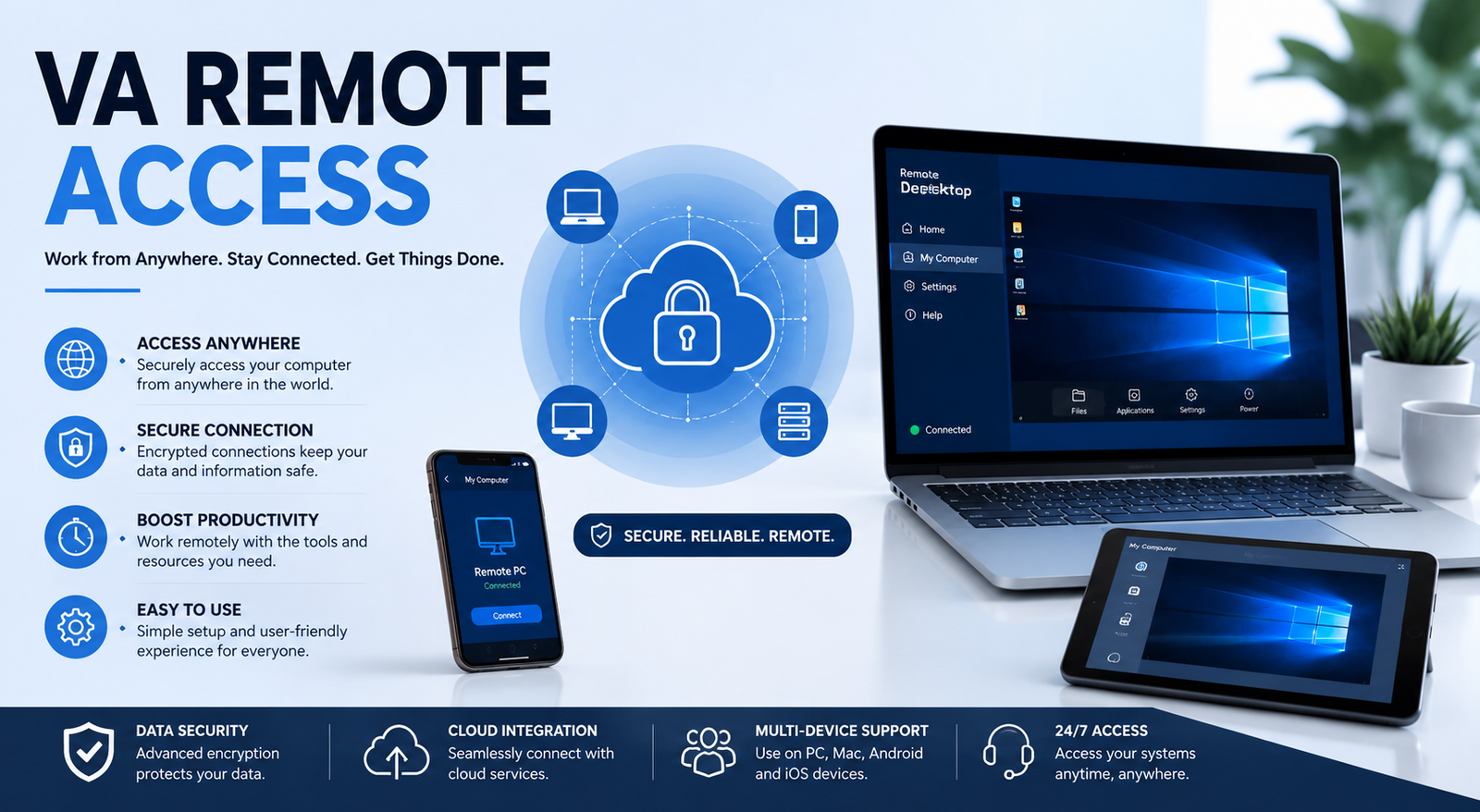
Remote work has become a standard way of doing business, making secure access to company systems more important than ever. Whether you're managing a remote virtual assistant (VA), supporting a distributed workforce, or setting up secure access to business applications, having a reliable VA remote access solution is essential for productivity and data protection.
Businesses today rely on cloud platforms, virtual desktops, VPNs, and secure authentication methods to allow remote workers to perform tasks without compromising sensitive information. Choosing the right remote access method not only improves efficiency but also reduces cybersecurity risks such as unauthorized access, data breaches, and credential theft.
This guide explains how VA remote access works, the different technologies available, best security practices, and how to choose the right solution for your organization. Whether you're a small business owner, IT administrator, or agency managing remote staff, you'll find practical insights to build a secure remote work environment.
What Is VA Remote Access?
VA remote access refers to the ability for a Virtual Assistant (VA) to securely connect to an organization's systems, files, applications, or desktop from a remote location. Instead of working inside an office network, virtual assistants access company resources through secure technologies such as VPNs, remote desktop software, cloud platforms, or virtual desktop infrastructure (VDI).
Remote access allows assistants to complete everyday tasks like updating websites, managing customer support, handling email, maintaining spreadsheets, scheduling appointments, or accessing CRM software while maintaining business continuity.
A secure remote access system typically includes:
User authentication
Encrypted connections
Permission-based access
Activity monitoring
Multi-factor authentication (MFA)
For organizations using enterprise environments, solutions like VA remote access Azure provide scalable cloud-based desktops that employees and virtual assistants can access from almost anywhere.
Common Use Cases
Businesses use VA remote access for many day-to-day operations, including:
Managing WordPress websites
Customer service support
Social media management
Data entry
Bookkeeping
CRM updates
Administrative tasks
Digital marketing
For example, a digital marketing agency can allow a virtual assistant to securely log in to Google Workspace, WordPress, and project management software without exposing sensitive company credentials.
Why Businesses Use Remote Access for Virtual Assistants
Hiring remote virtual assistants offers flexibility and access to global talent, but it also requires secure systems that protect confidential business information.
Here are the primary reasons organizations invest in secure VA remote access solutions.
Improved Productivity
Virtual assistants can work from any location without waiting for files to be transferred or relying on unsecured email attachments. Direct access to business systems reduces delays and improves collaboration.
Lower Operating Costs
Remote work reduces office expenses, equipment costs, and infrastructure requirements. Businesses can hire skilled professionals regardless of geographical location while maintaining secure access controls.
Better Business Continuity
Unexpected disruptions such as natural disasters, travel restrictions, or office closures no longer prevent work from continuing. Secure remote access keeps operations running smoothly.
Enhanced Collaboration
Cloud-based applications enable virtual assistants to collaborate with internal teams in real time through shared documents, communication platforms, and project management software.
Stronger Security Controls
Modern remote access platforms offer advanced security features including encrypted connections, role-based permissions, and detailed activity logs that help organizations maintain compliance.
Benefits at a Glance
How VA Remote Access Works
Understanding how remote access works helps organizations choose the right technology and implement appropriate security controls.
Although different solutions vary slightly, the overall process follows a similar workflow.
Step 1: User Authentication
The virtual assistant enters their username and password to verify their identity. Most businesses also require multi-factor authentication, such as a mobile authentication app or security token.
Step 2: Secure Connection
After successful authentication, an encrypted connection is established between the user's device and the company's network. This protects sensitive information from interception during transmission.
Step 3: Identity Verification
Some organizations require additional verification methods, including biometric authentication or a VA Remote access PIV card for government or high-security environments.
Step 4: Access Permissions
Role-based permissions determine which applications, folders, or systems the user can access. This follows the principle of least privilege, ensuring users only access the resources necessary for their work.
Step 5: Access Business Resources
Once authenticated, virtual assistants can securely use business applications such as:
Microsoft 365
Google Workspace
CRM software
Accounting platforms
Remote desktops
Internal databases
File servers
Step 6: Activity Monitoring
Most enterprise systems continuously monitor login attempts, file access, and user activity to detect suspicious behavior and improve security.
Types of VA Remote Access Solutions
Not every business requires the same type of remote access. The best solution depends on company size, budget, compliance requirements, and the sensitivity of business data.
Remote Desktop Access
Remote desktop software allows users to connect directly to another computer over the internet.
Popular solutions include:
Microsoft Remote Desktop
Chrome Remote Desktop
AnyDesk
TeamViewer
These tools are suitable for freelancers, consultants, and small businesses that need occasional access to office computers.
Advantages
Easy to deploy
Affordable
Minimal hardware requirements
Suitable for small teams
Limitations
Depends on the host computer remaining online
May not meet enterprise compliance requirements
Performance depends on internet speed
VPN-Based Remote Access
A Virtual Private Network (VPN) creates a secure encrypted tunnel between a remote device and the organization's network.
VPNs allow virtual assistants to safely access internal systems while working remotely.
Typical VPN features include:
Encryption
Secure authentication
Internal network access
IP protection
VPNs remain one of the most common solutions for businesses that maintain on-premises infrastructure.
Virtual Desktop Infrastructure (VDI)
Virtual Desktop Infrastructure hosts desktop environments inside centralized servers instead of individual computers.
Employees and virtual assistants connect to these virtual desktops using secure authentication, allowing IT teams to manage software, updates, and security from one location.
Popular VDI platforms include:
Microsoft Azure Virtual Desktop
Citrix Virtual Apps and Desktops
VMware Horizon
Organizations searching for VA remote access Azure often choose Azure Virtual Desktop because it integrates seamlessly with Microsoft 365, Azure Active Directory, and enterprise security tools.
Cloud-Based Remote Access
Many modern businesses have moved away from traditional VPNs toward cloud-native remote access platforms.
Instead of connecting to an entire corporate network, users securely access only the applications they need through web-based portals.
Benefits include:
Faster deployment
Better scalability
Reduced infrastructure costs
Simplified management
Improved security through Zero Trust principles
Cloud-based remote access is particularly valuable for businesses with distributed teams or hybrid work environments.
Comparing Popular Remote Access Solutions
Choosing the Right Option
If your organization manages only a few remote workers, a VPN or remote desktop solution may be sufficient. However, businesses with multiple virtual assistants, strict compliance requirements, or growing remote teams often benefit from cloud platforms such as Azure Virtual Desktop or Citrix.
For enterprise environments, users may encounter a VA remote access login Citrix portal to securely authenticate and access virtual desktops or business applications. These solutions centralize management while providing strong security and a consistent user experience across devices.
Essential Security Best Practices for VA Remote Access
Providing remote access is only one part of the process. Protecting company data and preventing unauthorized access are equally important. A well-planned security strategy minimizes risks while allowing virtual assistants to work efficiently.
Enable Multi-Factor Authentication (MFA)
Passwords alone are no longer enough. Multi-factor authentication requires users to verify their identity through an additional method, such as a mobile authentication app or hardware security key. This significantly reduces the risk of compromised accounts.
Follow the Principle of Least Privilege
Only grant access to the systems and files a virtual assistant needs to perform their job. Limiting permissions reduces the impact of accidental mistakes or compromised credentials.
Use Strong Password Policies
Require long, unique passwords and encourage the use of password managers. Passwords should never be shared through email or messaging apps.
Keep Devices Updated
Operating systems, browsers, and applications should always be updated with the latest security patches. Outdated software often contains vulnerabilities that attackers can exploit.
Protect Endpoints
Install trusted antivirus software, enable device encryption, and use firewalls on all company-managed devices.
Monitor User Activity
Regularly review login history, access logs, and unusual activity. Monitoring helps identify suspicious behavior before it becomes a security incident.
Security Checklist
✔ Enable Multi-Factor Authentication
✔ Use encrypted connections
✔ Apply role-based permissions
✔ Keep software updated
✔ Monitor login activity
✔ Encrypt company devices
✔ Train remote employees on cybersecurity
Step-by-Step Guide to Setting Up VA Remote Access
A structured setup process ensures that remote assistants can work securely without disrupting business operations.
Step 1: Identify Required Resources
List every application, folder, and system the virtual assistant needs to access. Avoid giving unnecessary permissions.
Step 2: Choose the Right Remote Access Solution
Select a solution based on your organization's size and security requirements. Small businesses may prefer VPNs or remote desktop software, while larger organizations often use Azure Virtual Desktop or Citrix.
Step 3: Create User Accounts
Create individual accounts for every virtual assistant instead of sharing credentials. Individual accounts make auditing and permission management much easier.
Step 4: Configure Authentication
Enable MFA and, if required, configure a VA Remote access PIV card or hardware authentication device for enhanced security.
Step 5: Assign Permissions
Grant access only to approved applications and data. Review permissions periodically as job responsibilities change.
Step 6: Test the Connection
Verify that users can log in successfully, access required resources, and complete their tasks without errors.
Step 7: Provide Documentation
Share clear VA Remote access instructions so users understand the login process, password policies, security requirements, and troubleshooting steps.
Common Tools Used for VA Remote Access
Many reliable platforms support secure remote work. The right choice depends on your budget, infrastructure, and business needs.
Some organizations also provide a dedicated VA remote access app that simplifies secure connections and authentication for employees working from different locations.
Common Challenges and How to Solve Them
Even well-designed remote access environments occasionally experience technical issues. Understanding common problems helps reduce downtime.
If issues continue, contact your organization's VA Remote access Help Desk for technical assistance.
Real-World Use Cases
Marketing Agency
A digital marketing agency gives its virtual assistants secure access to WordPress, Google Analytics, Google Drive, and project management software using Azure Virtual Desktop. Role-based permissions ensure assistants only access assigned client projects.
Accounting Firm
An accounting company allows remote bookkeepers to work securely through a VPN with MFA. Sensitive financial records remain inside the company's network, reducing the risk of data exposure.
Healthcare Organization
Healthcare administrators access patient scheduling systems through encrypted remote desktop sessions. Additional authentication and compliance policies help protect sensitive information.
eCommerce Business
Customer support representatives remotely access order management systems, inventory software, and CRM platforms without exposing payment data.
Law Firm
Legal assistants securely review case documents through Citrix Workspace while activity logging provides an audit trail for compliance purposes.
Mistakes to Avoid
Avoiding common mistakes improves both security and productivity.
Sharing passwords between employees
Giving administrator privileges unnecessarily
Ignoring software updates
Using public Wi-Fi without protection
Disabling MFA for convenience
Failing to monitor user activity
Not backing up important business data
Forgetting to remove access when employees leave
Small oversights can lead to major security incidents, making regular reviews essential.
Compliance and Privacy Considerations
Many organizations must follow industry regulations when providing remote access.
Common compliance frameworks include:
GDPR for organizations handling European customer data.
HIPAA for healthcare providers managing patient information.
SOC 2 for service providers protecting customer data.
ISO 27001 for organizations implementing information security management systems.
Maintaining audit logs, encrypting sensitive data, and regularly reviewing user permissions help support compliance efforts.
How to Choose the Right VA Remote Access Solution
Every business has unique requirements. Consider the following factors before selecting a remote access platform.
Also evaluate:
Budget
Number of remote users
Compliance requirements
Ease of management
Scalability
Device compatibility
Integration with existing systems
Businesses supporting Apple users should verify that their solution offers reliable VA Remote access Mac compatibility to ensure a consistent experience across operating systems.
If your organization requires new user onboarding, establish a documented VA Remote access request process. This ensures approvals, permission assignments, and security checks are completed before access is granted.
Conclusion
A secure VA remote access solution enables businesses to support remote work without compromising productivity or data security. Whether you choose a VPN, remote desktop software, Azure Virtual Desktop, or a Zero Trust platform, the key is implementing strong authentication, least-privilege access, device protection, and continuous monitoring.
By following the best practices outlined in this guide, documenting clear access procedures, and selecting a solution that matches your organization's size and compliance needs, you can create a reliable remote work environment that supports growth while protecting sensitive business information.
Frequently Asked Questions
What is VA remote access?
VA remote access allows virtual assistants to securely connect to company systems, applications, and files from a remote location using technologies such as VPNs, remote desktops, or cloud-based virtual desktops.
Is VA remote access secure?
Yes. When combined with MFA, encryption, role-based permissions, and regular monitoring, VA remote access provides a highly secure environment for remote work.
Does remote access always require a VPN?
No. Many modern cloud platforms use Zero Trust or browser-based access that does not require a traditional VPN.
What is the best remote access solution for small businesses?
Small businesses often benefit from VPNs, Chrome Remote Desktop, or Microsoft Remote Desktop because they are affordable and relatively easy to manage.
Can I use VA remote access on a Mac?
Yes. Many platforms, including Azure Virtual Desktop, Citrix Workspace, Microsoft Remote Desktop, and Chrome Remote Desktop, support macOS devices.
What should I do if I cannot log in?
First, verify your username, password, internet connection, and MFA code. If the problem persists, contact your organization's VA Remote access Help Desk for assistance.
Leave a Reply